Inspiration / Text to Image
AI Product Photography Ideas
Explore lighting, composition and background ideas for a clean AI product image using a simple ceramic mug studio-photo prompt.
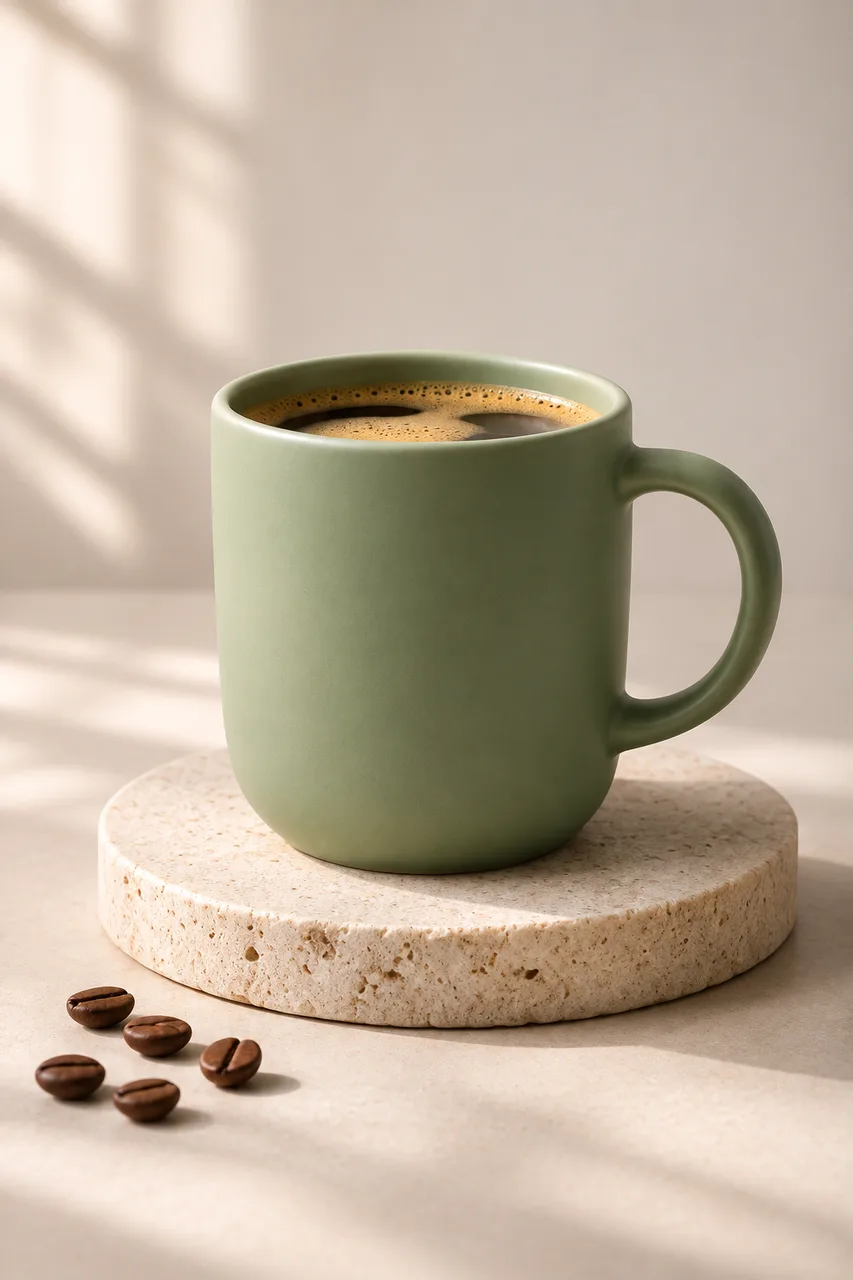
A clean product concept starts with decisions about the object, the light and the surface beneath it. A simple ceramic mug makes those decisions visible: its handle reveals shape, its matte glaze reveals light, and its shadow reveals the relationship to the pedestal.
What you'll create
Explore a static studio-image concept: a sage-green mug on pale stone, soft light from the left and a warm-white backdrop. Use it as a composition study, not as proof of the appearance or dimensions of a real product. If you are preparing a commercial listing, an invented image is not a substitute for checking the actual item.
The reference below is a still image. It is neither an animated GIF nor a source photograph supplied to Photo to GIF. The current product is a frontend demonstration; no live API image quality has been verified.
How to try it
- Open Try this prompt to select Text to Image with the studio product photo template. This workflow starts from text and aims at a still output.
- Describe the object before the styling: ceramic material, matte surface, sage-green colour and a visible handle. Avoid adding several competing hero objects.
- Read the studio setup: pale stone pedestal, left-side window light, gentle shadow and warm-white background. Choose one change to this setup for your first variation.
- Decide where the mug should sit in the frame and how much empty space you need. The prompt's portrait framing is an intention to review against the selected editor settings and eventual file, not a guarantee that every phrase is enforced.
- Compare the object's silhouette and surface in any output before concentrating on decorative coffee beans or background texture.
The prompt remains editable. No photo upload is required, and choosing this template does not start an animation or prove a working production generation call.
Suggested prompt
Studio product photo of a matte sage-green ceramic coffee mug on a pale stone pedestal, soft window light from the left, gentle shadow, a few coffee beans scattered nearby, minimal warm-white background, premium e-commerce look, shallow depth of field. No text, no logos.Local template:
studio-product-photo · Suggested recipe, not a verified generation record.Try this prompt Use lighting to describe shape
Side light helps distinguish the mug's rounded wall from the handle and the background. A gentle shadow gives the object a place to rest. If the pedestal and mug have similar tones, separate them with light direction and silhouette rather than asking for dramatic reflections everywhere.
Keep texture descriptions specific. “Matte ceramic” and “pale stone” are easier to evaluate than a string of broad quality adjectives. Shallow depth of field can soften the setting, but the handle and rim still need to be readable. A product image that blurs its defining features may be attractive yet unhelpful.
A future Photo-to-GIF study could begin from a permitted, suitable still after you save and review it. That would be a separate step with its own source selection and motion prompt. Text to Image itself produces a static concept, not an immediately animated GIF.
Ideas to experiment with
- Compare warm and cool window light while holding the mug colour description fixed.
- Replace the stone pedestal with a plain wood surface and inspect how the shadow changes.
- Try a slightly different side angle while keeping the handle fully inside the crop.
- Add negative space above or beside the mug, without asking for generated headline text.
What to check
Inspect the handle's attachment points, the rim ellipse and the base. Look for impossible joins, inconsistent wall thickness and an object that floats above its shadow. Check that the light direction agrees across mug, beans and pedestal.
Review colour and texture at full size and at the intended display size. Unwanted text, invented logos, clipped handles and misleading material details are reasons to revise. A still needs checks for edges, composition and file dimensions rather than a loop-seam test.
For help choosing a separate animation step, read Photo to GIF vs Text to GIF.
Reference study