Guides / Photo to GIF
Photo to GIF vs Text to GIF
Compare animating your own photo with generating a GIF scene from text, using the same subject, and see where a still Text to Image step fits.
Choose the workflow by what you already have. A photo or drawing gives the model a particular subject and composition to animate. A text description gives the model a scene to invent. To make the difference easy to see, both examples below feature a dog.
Begin with an image
Photo to GIF combines a still image and a motion instruction. The image supplies the subject's appearance and most of the composition. The prompt describes the change you want to see.
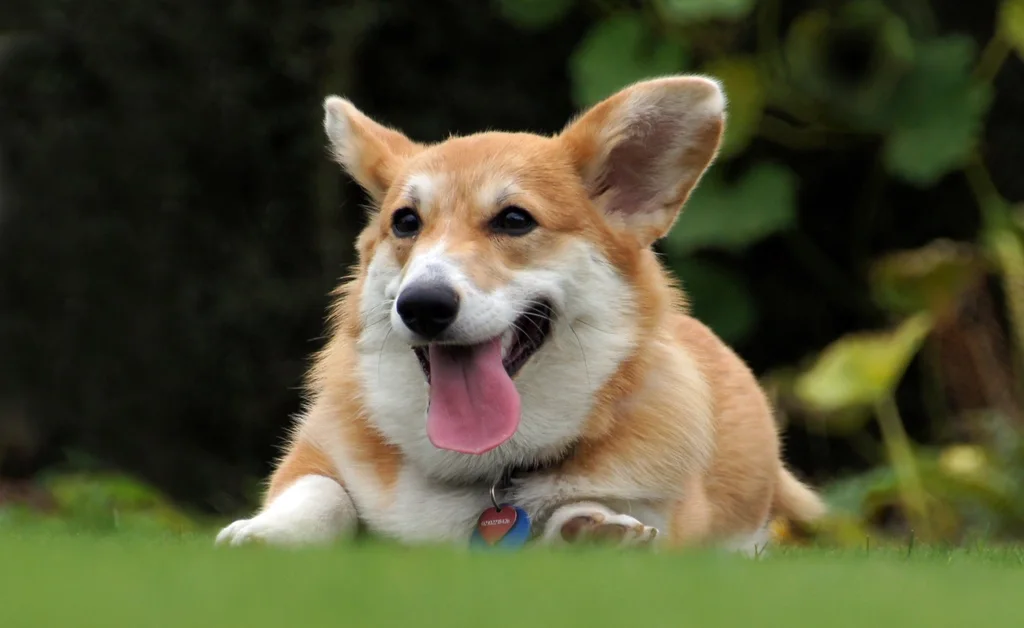
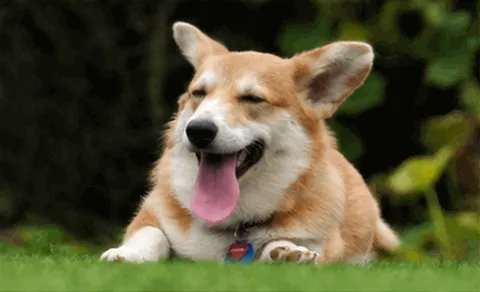
The corgi below starts from a free CC0 photo; the GIF was made with GPT Image 2.6. Its cover is a frame of the result, not the input.
- Open Try this prompt to select the corgi template in Photo to GIF.
- Inspect the input. If you already uploaded an image, the editor keeps your upload instead of replacing it with the sample.
- Read the motion instruction and note which details must stay stable: the corgi's face, its markings and the background.
- Compare any result with its starting image as well as checking motion across frames.
Animate the supplied pet photo: the corgi pants happily with its tongue out, its ears twitch and it blinks softly, while the leaves behind it sway. Keep the dog's face, fur and the grass the same, fixed camera. No added text.Local template:
smiling-corgi · Suggested recipe, not a verified generation record.Try this prompt Begin with a scene idea
Text to GIF starts without an input photo. Describe the subject, setting, composition and action in words. The meadow example was made with GPT Image 2.6 from a text prompt alone, with no source image.
- Open the meadow template below to select Text to GIF.
- Read how the prompt sets the light, the grass and the slow-motion pace around the puppy.
- Change one detail at a time, such as the breed, the light or the pace of the action.
- Review consistency across the whole clip, including the paws, ears and background.
A golden retriever puppy bounds toward the camera across a green meadow. Show natural movement of its paws, ears and tail in gentle slow motion, with warm afternoon light and softly blurred grass.Local template:
golden-puppy-in-afternoon-light · Suggested recipe, not a verified generation record.Try this prompt The photo version keeps the look of one specific dog. The text version invents a puppy that matches the description. If the subject must look like your own pet, product or character, start from a photo.
Where still images fit
Text to Image produces a still picture. Mentioning motion in a still-image prompt does not turn the output into a GIF. The product photography study is a still example. To animate a still you made, download it and use it as the input for Photo to GIF.
Compare the actual outputs
Both examples were made for GifMyPhoto with GPT Image 2.6, and the prompts are shown exactly as used. Results can differ with the model, settings and input.
For both animated workflows, check shapes, framing and brightness through several frames. If a repeating loop is required, inspect the transition from the ending back to the beginning. Use How to Write Better Motion Prompts to make the next request more specific.
Reference study